The Figma Dev Mode is a revolutionary step in bridging the design-to-code handoff gap that has long slowed down product teams. It provides a dedicated developer-centric workflow where designers and developers can collaborate seamlessly inside a single platform. With real-time access to design tokens and variables, developers can easily inspect, copy, and apply code-ready components without leaving Figma. This feature eliminates manual guesswork, ensuring that every pixel, padding, and property is perfectly translated into production. From Code Connect integration to instant visual diffs, Figma Dev Mode simplifies communication, enhances productivity, and empowers modern teams to ship accurate, consistent, and scalable user interfaces faster than ever.
This mode helps both designers and developers collaborate efficiently. It improves the speed of product delivery, minimizes miscommunication, and ensures that what’s designed visually is built precisely. As teams move faster in 2025, Figma Dev Mode features like real-time design inspection, ready-for-dev status, and component mapping to code are becoming essential across agile environments.
What Is Figma Dev Mode and How It Works
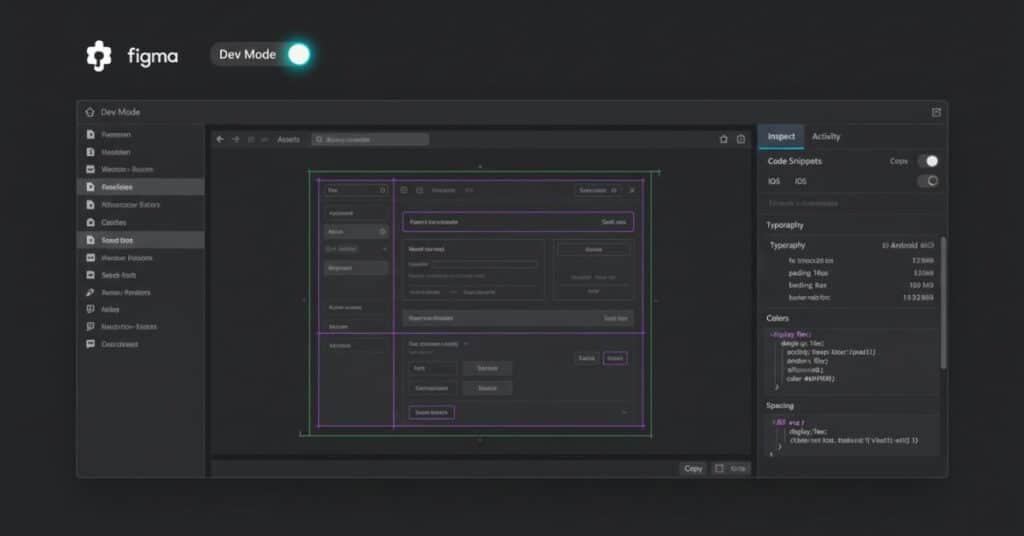
So, what is Figma Dev Mode exactly? It’s a specialized workspace inside Figma made for developers to inspect designs and access real-time code snippets. Unlike the old Dev Mode inspect panel, this update transforms Figma into an interactive bridge between design and engineering. It gives you contextual design properties like padding, layout grids, and production-ready code snippets.
Here’s how Figma Dev Mode works — developers can toggle the mode, explore component mapping to code, and instantly view CSS, SwiftUI, or React outputs. They can also analyze Figma variables alias chains, tokens, and real-time updates, creating smooth design-to-code automation. It’s intuitive, easy to access, and available even for those without full design seats.
Key Features of Figma Dev Mode
The 2025 version adds deeper design system enforcement and token-based design workflow. Users can explore design tokens and variables, view alias mapping in design systems, and check cross-platform code export capabilities. The updated Dev Mode inspect panel now displays component props mapping, allowing developers to understand how each UI part connects to live code.
Another major update is Code Connect integration, a Figma feature linking real UI components with code repositories. This means you no longer rely on dummy code examples — the snippets reflect your production-ready framework. It ensures visual accuracy and reduces time spent syncing assets across multiple tools like Storybook or Zeplin.
Step-by-Step: From Design to Code Using Figma Dev Mode
The real power of Figma Dev Mode shines when you move from design to production. It streamlines the process by auto-generating accurate spacing, color variables, and component hierarchies. Developers can inspect properties directly in Figma instead of switching between design files and coding environments.
| Task | Manual Process | Dev Mode Output |
| Spacing & layout | Manual CSS edits | Auto-generated responsive layout |
| Colors | Copying HEX manually | Linked tokenized variable |
| Components | Rebuilt from scratch | Mapped directly via Code Connect |
This table shows how the Figma to code bridge simplifies repetitive work. Instead of reinterpreting styles, developers can focus on functionality. The result is cleaner, consistent, and scalable UI delivery.
Design Systems, Tokens, and Variables
In Figma Dev Mode, design system tokens play a vital role in maintaining consistency across projects. Developers can explore how a color, font, or spacing variable is derived, following the alias chain to its source. This improves clarity and reduces misalignment when multiple teams contribute to a single system.
These tokens also enhance compatibility with frameworks like React, Flutter, and SwiftUI. Teams using Code Connect integration can sync their component library and generate real-time design inspection reports that stay true to the brand’s system. It’s a scalable way to enforce design variable management across large enterprise setups.
Collaboration and Change Management in Dev Mode
The new Ready for dev status helps teams mark final frames for development, cutting confusion over incomplete designs. Developers can focus on approved screens, while designers continue refining others. Figma Dev Mode’s focus view and visual diff comparison make collaboration more transparent and reduce feedback loops.
When changes occur, teams can use the diff comparison feature to spot updates in typography, spacing, or color instantly. This change management in design files keeps cross-discipline collaboration smoother. It reduces time spent asking, “What changed since the last version?” and allows developers to build confidently.
Integrations and Development Workflow
The success of Figma for developers lies in its integrations. The platform now connects directly with Jira, GitHub, VS Code, and Storybook. Developers can link designs to active tickets or commit changes with visual documentation. The workflow integration with Jira ensures designers and developers stay aligned within the same sprint.
With Figma’s MCP server integration, advanced users can push design data directly into AI or IDE systems for intelligent code assistance. This makes Figma Dev Mode for teams and agencies a versatile choice that scales across workflows, whether you build for the web, Android, or iOS.
Pricing, Licensing, and Access Plans
Figma Dev Mode pricing is flexible, offering Dev Mode-only plans alongside full design access. Developers can use the tool for a lower cost under Dev seats, starting around $15 per month when billed annually. This model allows companies to scale efficiently without buying unnecessary design licenses.
Figma team licensing includes multiple tiers — Free, Professional, Organization, and Enterprise. Higher tiers add Enterprise SSO and SCIM controls, admin permissions, and team billing visibility. It’s a transparent and scalable pricing model that fits both startups and global product teams.
Where Figma Dev Mode Still Falls Short
While it’s powerful, Figma Dev Mode isn’t perfect. The system can lag with large files or complex components, especially during real-time variable tracking. The cross-platform code export is limited for niche frameworks beyond React and SwiftUI. There’s also no direct IDE plugin yet for VS Code integration for Figma.
However, there are workarounds. Use Code Connect for framework mapping, integrate with Storybook component documentation, or employ plugins like Luckino for JSON and CSS variable exports. These help overcome the current constraints while maintaining the integrity of your design system pipeline.
Competitor Comparison: Figma Dev Mode vs Zeplin vs Storybook
When comparing Figma Dev Mode vs Zeplin vs Storybook, each tool serves different purposes but overlaps in handoff and documentation.
| Feature | Figma Dev Mode | Zeplin | Storybook |
| Accuracy | High (tokens, code) | Moderate | High (code-driven) |
| Collaboration | Real-time in Figma | Separate platform | Requires manual sync |
| Learning Curve | Easy | Medium | Advanced |
| Code Integration | Built-in (Code Connect) | Limited | Strong |
Figma Dev Mode wins on collaboration and developer handoff tools, while Storybook excels in documentation depth. For teams already using Figma daily, Dev Mode offers the most seamless and affordable solution.
Pros, Cons, and Best Use Cases
Figma Dev Mode provides clarity, automation, and efficiency for design-to-development collaboration. It eliminates redundant communication, saves time on reworks, and ensures code reflects the design system accurately. The platform fits well for agencies, startups, and enterprise UX teams managing large component libraries.
Its downsides—limited export options and minor lag—are outweighed by improved developer productivity in Figma and better cross-discipline teamwork. It’s a tool that brings creative and technical teams together in one unified space.
Conclusion: The Future of Design-to-Code Collaboration
Figma Dev Mode is more than a feature; it’s the new foundation of modern design-engineering collaboration. It transforms Figma into a design-to-code automation ecosystem, aligning visual creativity with production accuracy. The tool bridges designers’ intent and developers’ execution, setting a new standard for workflow harmony.
As Figma continues evolving, expect deeper AI/IDE workflow integrations, stronger code parity, and even faster automation. Whether you’re an individual developer or a large product team, Figma Dev Mode is your gateway to seamless design-to-code alignment.
FAQs About Figma Dev Mode
Q: How do I turn on Dev Mode in Figma?
You can toggle it from the top-right menu of your Figma file.
Q: Is Figma Dev Mode free?
Yes, partially — developers can access it with free or paid Dev seats.
Q: How does Figma Dev Mode work?
It connects designs to live code through Code Connect and design tokens.
Q: Can developers use Figma Dev Mode?
Yes, they can inspect, copy, and validate real code snippets directly.
Q: How much does Figma Dev Mode cost?
Pricing starts at $15/month per Dev seat under the Organization plan.
Q: What is Figma Dev Mode used for?
It’s for bridging design and development—turning visual designs into production-ready specs.

I’ve spent over 8 years working across SEO, WordPress development, Laravel, and UI/UX design, helping businesses improve their websites, search visibility, and overall digital presence. My experience includes on-page and off-page SEO, technical optimization, content strategy, WordPress development, and user-focused design for a range of clients and businesses.
Over the years, I’ve worked with teams including Skyray Ventures, Dotrefl, and ESPA Builders, combining technical development with digital marketing to deliver practical, measurable results.
I’m currently developing Laravel-based web applications at Princess Tourism while also growing LayersPilot, a digital services platform focused on SEO, web design and development, and website customer care.
One project I’m particularly proud of is Catch Head, an AI-powered lead generation platform developed by my team and presented at the Microsoft Imagine Cup at the national level.
I’m especially interested in SEO, Generative AI, prompt engineering, and AI-driven content strategy, and I enjoy connecting with businesses and professionals looking to strengthen their online presence through technology and search.